
Sony Flash Tool V0.9.36.0 | Download Latest Version 2027 for Windows
Is your Sony Xperia stuck on the logo? Does it keep restarting in a boot loop? Maybe an update failed, and now the phone will not start. Many Xperia owners and repair shops face this problem. The Sony Flash Tool, also called Flashtool or Xperia Flash Tool. It installs fresh firmware on supported Xperia phones and tablets, so a soft-bricked device can start working again.
What Is the Sony Flash Tool?
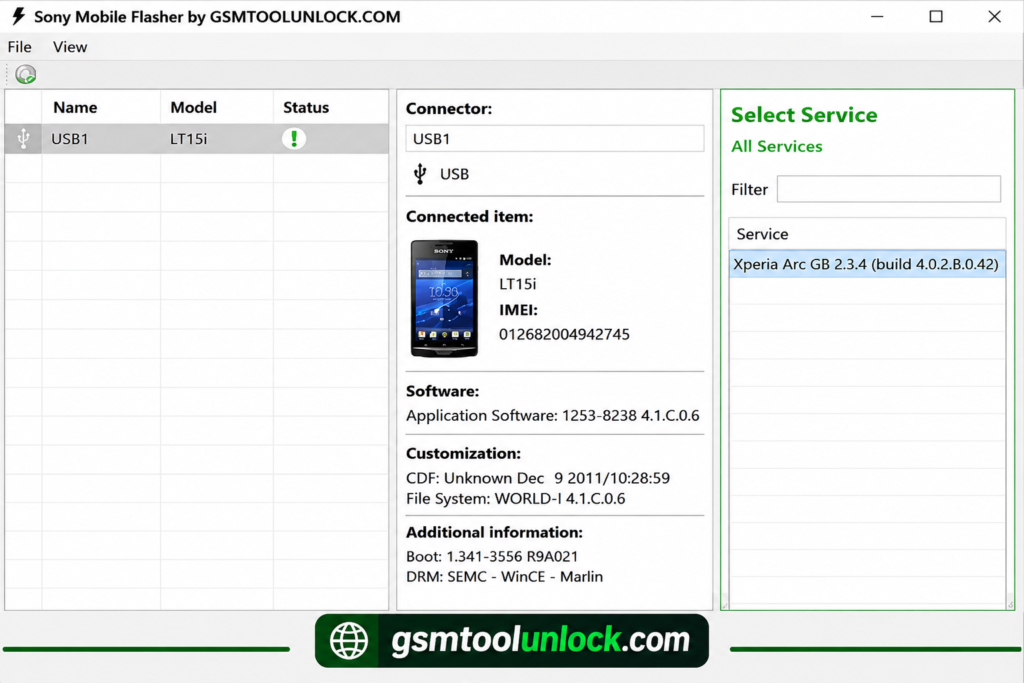
The Sony Flash Tool is a Windows application for repairing Xperia Android smartphones and tablets. It is mainly used to flash stock firmware, install ROM files, fix boot loops, and restore Xperia software. The tool works with FTF files. FTF is a firmware file type made for Flashtool.
Features of Sony Flash Tool
FTF Firmware Flashing
You can flash supported FTF firmware files on compatible Xperia phones. This helps when you need to reinstall or change the software.
Firmware Recovery
Flashing the right firmware can fix boot loops, software crashes, and some soft-bricked phones. It will not fix broken hardware.
Download Firmware
The tool can help you find and download firmware for your Xperia model. Always check that the model number and the variant match your phone.
Flash Mode Support
Flash Mode is a special mode that lets the phone talk to your computer while firmware is installed. On many Xperia models, you turn the phone off, hold the Volume Down key, and plug in the USB cable.
Fastboot Support
Fastboot is another special mode used for bootloader work. On many models, you hold the Volume Up key while you plug in the cable.
Bootloader Support
The bootloader is the first program that runs when your phone starts. Sony allows bootloader unlocking on many Xperia models through its Sony Developer World website, using a code tied to your IMEI. The Sony Flash Tool has bootloader-related functions for supported models. Unlocking can erase your data. It can also remove DRM keys stored in the TA partition, which may reduce some camera features. It may also affect your warranty.
Product Information
The tool can read details like the model number, IMEI, and storage. IMEI is the unique number that identifies your phone on a mobile network.
USB Driver Support
Flashtool comes with drivers for Flash Mode, Fastboot, and many Xperia models. Good drivers give you a stable connection.
Works on Windows, macOS, and Linux
The Sony Flash Tool has versions for Windows, macOS, and Linux. Most users run it on Windows.
What’s New in the Sony Flash Tool?
- Wider Xperia compatibility
- Better FSC support
- Legacy flashing support for older models
- Better handling of firmware files
- Better FTF flashing support
- Updated flashing steps
Download Information
| Detail | Info |
| Tool Name | Sony Flash Tool (Flashtool) |
| Version | V0.9.36.0 |
| File Size | 80.37 MB |
| File Password | None |
| Platform | Windows (also macOS and Linux) |
| Older Version | V0.9.25.0 is also available |
System Requirements
| Requirement | Details |
| Operating System | Windows 7, 8, 10, 11 (also macOS and Linux versions exist) |
| Processor | Intel or AMD, 1 GHz or faster |
| RAM | 2 GB minimum (4 GB recommended) |
| Storage | About 1 GB of free space |
| USB Port | Working USB 2.0 or 3.0 port |
| USB Drivers | Sony Xperia, Flash Mode, and Fastboot drivers |
| Firmware | The correct FTF file for your model |
Also read: TPS Tool v3.1 Review | FRP, Flashing & Screen Unlock
How to Download & Install Sony Flash Tool V0.9.36.0
- Visit a trusted source or download the latest version from gsmtoolunlock.
- Extract the ZIP file.
- Run the installer as Administrator.
- Follow the on-screen steps.
- Open the Flashtool folder and run Flashtool-drivers.exe.
- Select the Flashmode driver, the Fastboot driver, and the driver for your Xperia model.
How to Use Sony Flash Tool
- Back up your photos and files if you can. Flashing may erase them.
- Download the correct FTF firmware for your exact Xperia model.
- Copy the FTF file into the Firmwares folder in the Flashtool folder.
- Open the Sony Flash Tool.
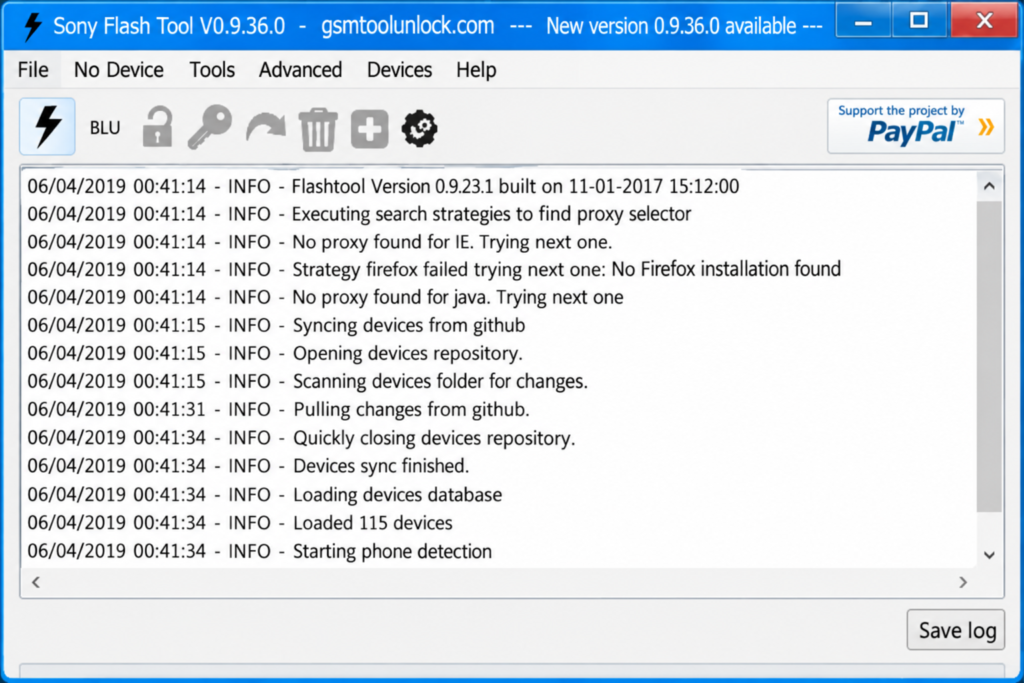
- Click the lightning icon and choose Flash Mode.
- Select your firmware and check that it matches your phone.
- Choose your wipe options, then click Flash.
- Turn the phone off fully.
- Hold the Volume Down key and connect the USB cable.
- Wait until the flash finishes. Keep the cable steady.
- Disconnect the phone and turn it on.
- Let the first start finish, then do the Android setup.
Pros and Cons
Pros
- Flashes FTF firmware on supported Xperia phones
- Helps with boot loops and failed updates
- Free to use
- Works on Windows, macOS, and Linux
- Shows a live progress log
Cons
- Works only on Sony Xperia
- Wrong firmware can break the phone
- Flashing may erase your data
- Setup can confuse beginners
- Needs the right USB drivers
Conclusion
The Sony Flash Tool is a helpful program for fixing Xperia software problems. It can flash FTF files, restore stock software, and help with boot loops and failed updates. It is free, simple to use, and works on Windows, macOS, and Linux. Always check your model, pick the right firmware, back up your data, and follow each step slowly.
FAQ’s
Does Sony Flash Tool support all Xperia devices?
No. Support depends on the Xperia model, firmware package, and Flash Tool compatibility. Always check the correct firmware before flashing.
Can flashing Sony Xperia firmware erase data?
Yes. Depending on the selected flashing and wipe options, the process can remove user data, apps, photos, and other files. A backup is recommended before flashing.
Which devices are compatible with the Sony Mobile Xperia Flash Tool?
It works with most Xperia smartphones and tablets running Android. Check your device’s compatibility on the official Sony Mobile website.
Is there any risk involved in using Sony Mobile Xperia Flash Tool?
Yes, flashing firmware carries a risk of bricking your device if done incorrectly. Follow instructions carefully and use the correct firmware to minimize risk.
Do I need Sony USB drivers for Flashtool?
Yes. The appropriate USB drivers are generally required so the computer can properly detect the Xperia device.
Does Sony Flash Tool support all Xperia devices?
No. Support depends on your model, firmware, and tool version. Always check before you flash.

One Comment