
QCN Tool V1 Direct Setup Download | Free for QCN & IMEI (2027)
A Qualcomm phone shows “no signal.” The IMEI looks wrong after a software repair. Network settings stop working for no clear reason. QCN Tool is a small Windows program made for these problems. It reads, edits, backs up, and restores QCN files on Qualcomm-based Android phones.
What Is QCN Tool?
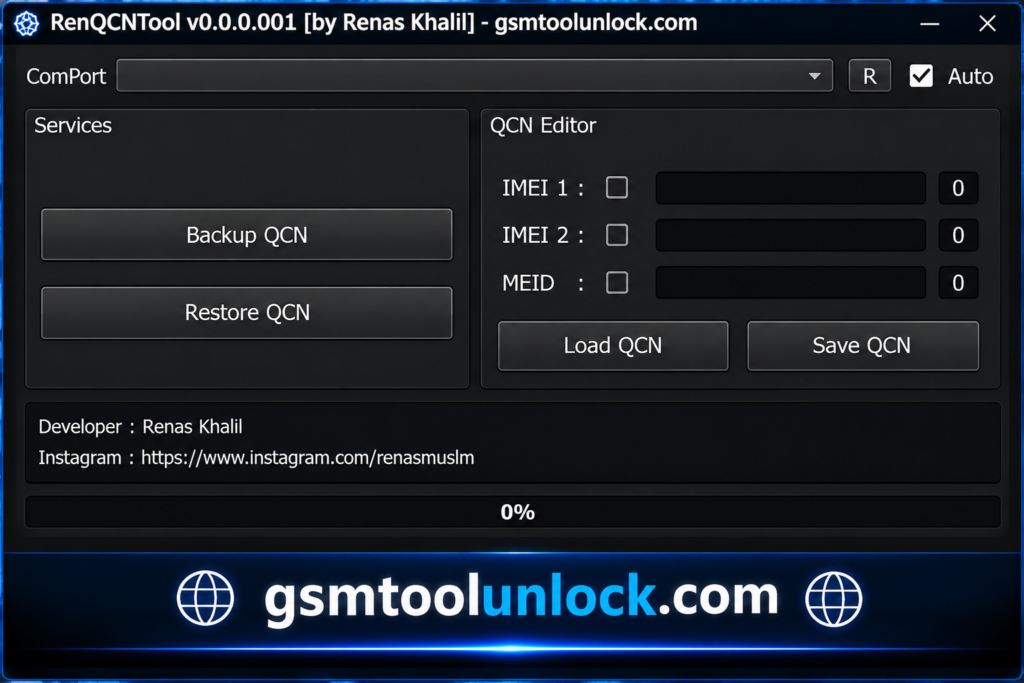
A QCN file stores a Qualcomm phone’s network and calibration data, including the IMEI. IMEI is the unique number that identifies a phone on a mobile network. QCN Tool is a Windows utility that lets technicians view this data, edit it, and create fresh QCN files when the old one is damaged. A damaged QCN file is one of the most common causes of a sudden “no service” problem after a software repair, so any Qualcomm repair shop needs a dedicated QCN tool.
Features of QCN Tool
IMEI Information
The tool reads and displays the IMEI information stored inside a QCN file. Checking this first is an important step before any repair, since it confirms the device’s identity and current configuration.
Editing IMEI Numbers
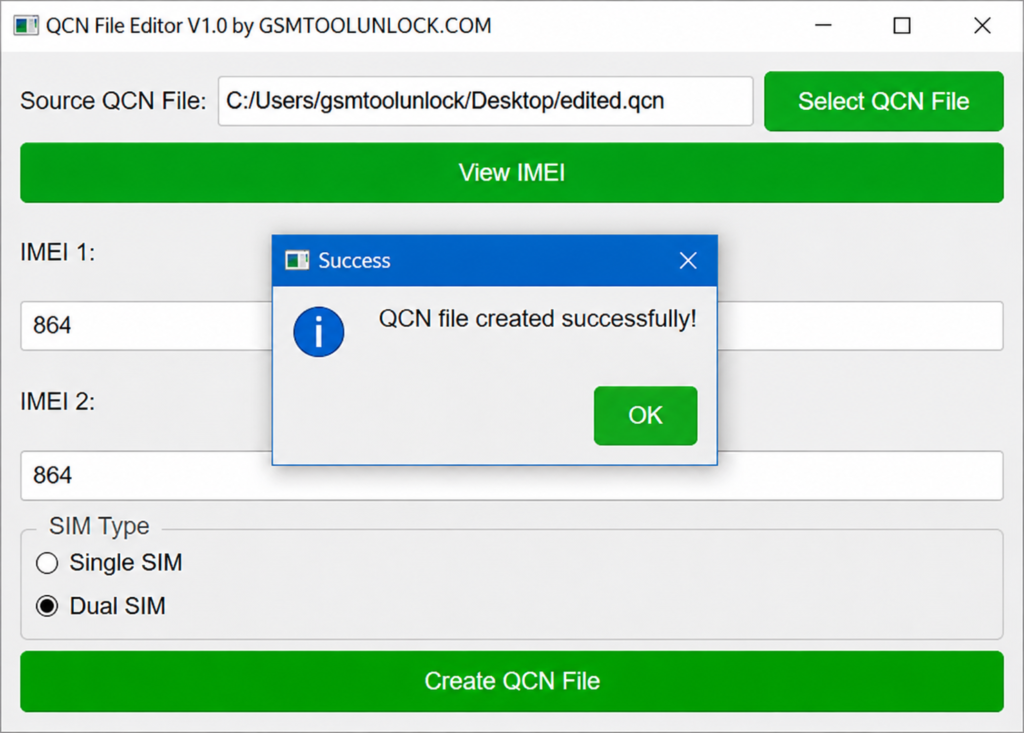
If a phone’s IMEI is damaged or missing after a software issue, QCN Tool lets you edit and rewrite it in a few clicks. Only do this with the original, correct IMEI for that exact device.
Creating QCN Files
If the original QCN file is lost or damaged, this can generate a new one that matches the device’s configuration.
SIM Type Selection
Whether the phone uses a single SIM or dual SIM, choosing the correct setting in the tool helps keep the SIM configuration accurate for that model.
Backup QCN
This can save a copy of the phone’s current network and configuration data before you make any changes. A fresh backup gives you something to fall back on if a repair does not go as planned.
Restore QCN
Once you have a saved backup, you can load it back onto the device to bring its network settings back to their earlier working state.
What’s New in QCN Tool?
- Improved QCN file handling
- Faster IMEI information checking
- Simplified QCN file creation
- Better SIM configuration options
- Smoother backup and restore process
- Updated, cleaner user interface
System Requirements
| Requirement | Details |
|---|---|
| Operating System | Windows 7, 8, 10, or 11 |
| Processor | Intel or AMD, 1 GHz or higher |
| RAM | 2 GB or more |
| Storage | At least 100 MB of free space |
| USB Drivers | Compatible Qualcomm USB and DIAG drivers |
| USB Connection | Working USB port and data cable |
| Phone | A Qualcomm chipset Android device |
QCN Tool Download Information
| Detail | Info |
|---|---|
| Tool Name | QCN Tool |
| Version | V1 |
| File Size | 31.73 MB |
| File Password | None |
| Platform | Windows |
| License | Free |
| Main Use | Qualcomm QCN editing and IMEI repair |
Also Read: Hydra Tool V2026.3.21.0 Free Download
How to Download & Use QCN Tool V1
- Download QCN Tool from gsmtoolunlock or from a trusted source.
- Extract the ZIP file with WinRAR or 7-Zip.
- Scan the files with your antivirus before you open them.
- Install the correct Qualcomm USB drivers on your PC.
- Turn on DIAG mode on the phone and connect it with a USB cable.
- Open the tool and choose the correct connection mode.
- Click Backup first and save the QCN file in a safe folder.
- To fix a problem, select Restore, choose the saved file, and apply it.
- To fix the IMEI, enter the correct number and click Write.
- Restart the phone once the process finishes.
Pros and Cons
Pros
- Simple interface for QCN file handling
- Shows stored IMEI information clearly
- Supports QCN backup and restore
- Handles single SIM and dual SIM setups
- Lightweight, free Windows tool
Cons
- Works mainly with Qualcomm devices
- The phone’s own DIAG mode may be needed
- Using the wrong file can cause network problems
- Not every Qualcomm model is confirmed to work
- IMEI changes must be handled carefully
Conclusion
QCN Tool gives technicians a simple way to view, edit, back up, and restore QCN files on Qualcomm Android phones. It helps fix common problems like no signal, an invalid IMEI, or lost network configuration after a software repair. It is free, lightweight, and easy to learn. Still, always back up before you make changes, use the correct file for the exact device, and service only phones you are allowed to repair.
FAQ’s
Which devices are compatible with QCN Tool?
It supports Qualcomm-powered Android smartphones and tablets. Compatibility depends on the exact device model, Android version, and chipset.
Can I edit multiple IMEI numbers at once?
Yes. On a dual SIM device with multiple IMEIs, QCN Tool can write or edit both numbers together.
Is it safe to use QCN Tool?
It is safe when used correctly. Always create a backup first, use the correct QCN file for that exact phone, and only work on devices you own or are authorized to repair.
Do I need special drivers for QCN Tool?
Yes. You need the correct Qualcomm USB drivers installed on your PC so the tool can detect and connect with the phone, often through DIAG mode.
Can QCN Tool fix network issues like no signal or an invalid IMEI?
A valid QCN backup can often restore network and calibration data, which can fix no-signal and IMEI problems. It may not fix every case, especially if the issue comes from hardware rather than software.
What happens if I use the wrong QCN file?
Using a QCN file from a different device, sometimes called an xQCN file, can cause new network or configuration problems. Always use a backup taken from the same phone.
Is QCN Tool free to download?
Yes. QCN Tool V1 is shared as a free Windows utility.



One Comment