
Amlogic USB Burning Tool V3.3.1 Driver Setup for Windows
Sometimes the firmware malfunctions and occasionally freezes. The best solution is the Amlogic USB Burning Tool, as it offers major upgrades to the device. The tool also includes custom firmware, downgrades, upgrades, and flashing. It supports different Android TV box models, including X96mini, X96 Max, X96 Max Plus, and many more.
What is the Amlogic USB Burning Tool?
The Amlogic USB Burning Tool 3.3.1 is Windows-based software designed to repair Android TV boxes. It supports Amlogic Processors and allows you to install, reinstall, upgrade, downgrade, and flash stock or custom firmware. It supports a wide range of TV boxes, including S805, S905, S912, S922, X96mini, X96 Max, X96 Max Plus, and more.
Features of Amlogic USB Burning Tool
Firmware flashing
Users often feel frustrated when Amlogic-powered devices freeze. The tool offers features like firmware flashing, easy updates, and firmware restoration.
Upgrade and downgrade
The Tool also offers upgrades and downgrades for Android TV Boxes to enhance performance. It can also fix other problems, like bugs, and add other features.
Brick recovery
If the device firmware is corrupted or updates fail, the tool helps flash forward and complete the update process. It also makes the device new and updated after the firmware is flashed.
Configuration
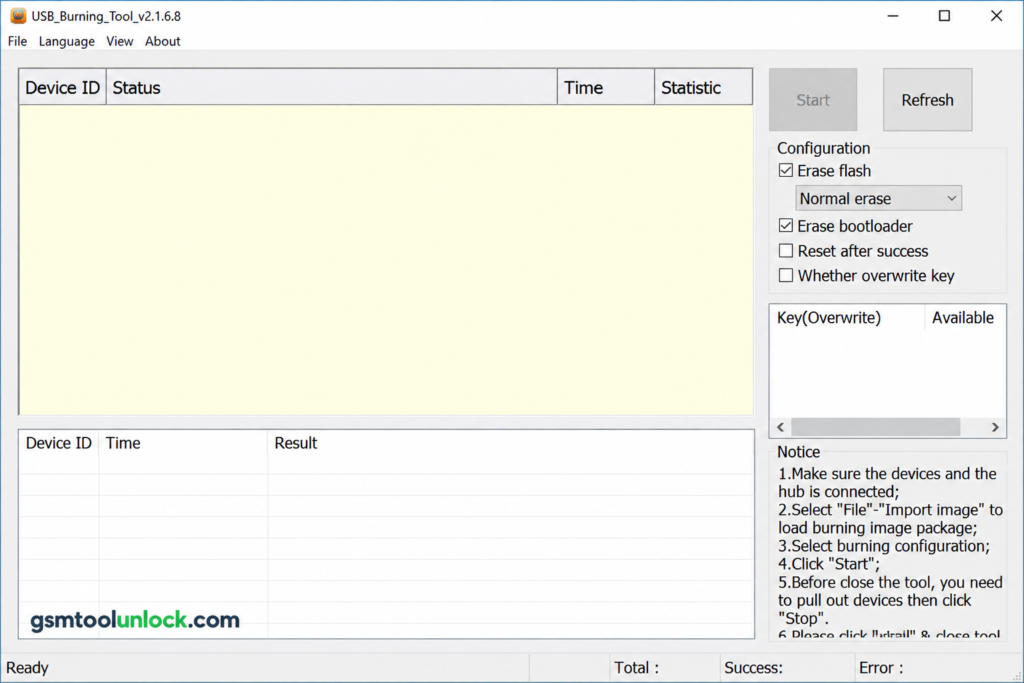
It also offers several configuration features like erase flash and bootloader, reset after access, and overwrite key. The erase types are normal erase, force erase, erase all, and force erase all.
Supported Devices and file formats
The tool supports a wide variety of Android TV boxes, tablets, and different multimedia devices. it also supports many formats like img, zip, and tar. TV boxes like T972, A311D2, S905W2, S805X2, S905D3, S905X2-X4, S922X, and S928X can be repaired with this tool.
Download Information
| File Name | Amlogic USB Burning Tool |
| File size | 37.5 MB |
| Version | V3.3.1 |
| File Password: | None |
Also check: Huawei FRP Tool v1.0 FRP Bypass & Fastboot Modified for Windows
How to Download & Install
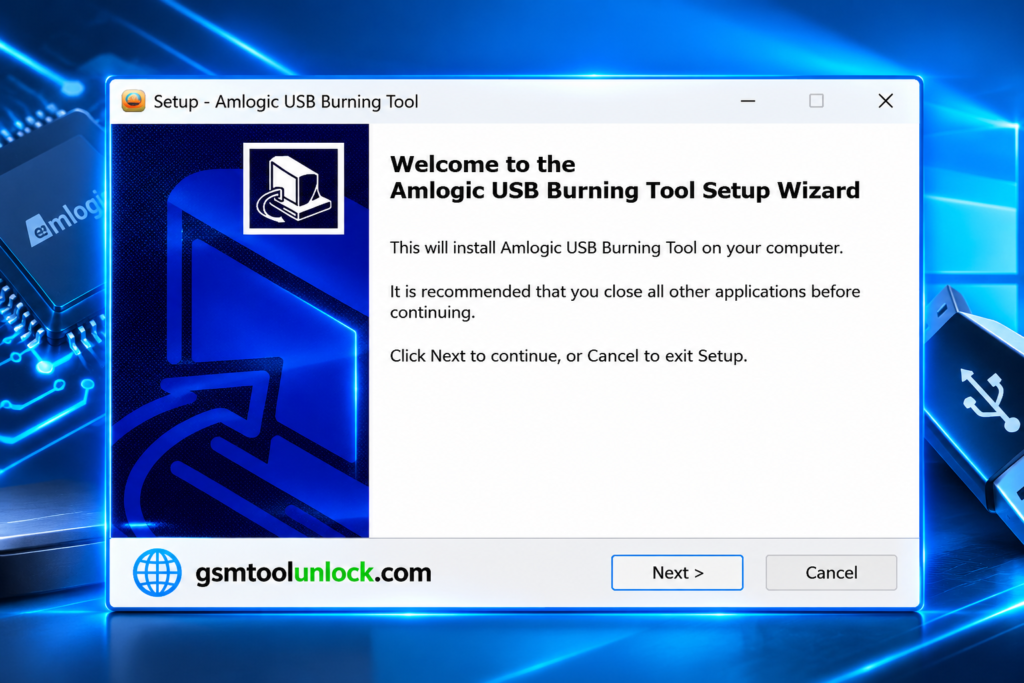
- Download the Amlogic USB Burning Tool or visit a trusted website.
- Download the latest version that your PC supports (32-bit or 64-bit).
- Extract the file using 7-Zip or WinRAR.
- Open the extracted folder.
- Right-click USB_Burning_Tool.exe → Run as Administrator.
- Click Next and keep the tool’s default settings.
- Install the required USB drivers.
How to use
- Connect your Amlogic device through a USB cable.
- Open USB Burning Tool.
- Click File → Import Image and select the firmware (.img, .zip, .tar).
- Make sure that the overwrite key is unchecked.
- Click Start to begin flashing the firmware.
- Wait until the process completes, then click Stop.
- Disconnect your device and power it on.
Conclusion
Amlogic USB Burning Tool is a powerful utility for repairing Android boxes. It also offers firmware flashing, restoring the device to its original condition, custom firmware, downgrading, upgrading, and performance improvements. It supports a wide range of devices, including Android TV boxes, tablets, and multimedia devices. It features a simple, easy-to-use interface. You can download the software and repair your device within a few clicks. We suggest installing the required drivers before starting the process.
FAQ’s
Is Amlogic USB Burning Tool safe?
Yes, the tool is safe to use when installed from a trusted source and used with the correct firmware.
Can it fix a bricked Android TV box?
Yes! The tool is capable of restoring firmware and repairing a corrupted bootloader.
Do I need drivers?
Yes, it requires the USB driver to detect your device and work correctly.
Can I downgrade firmware?
Yes! The tool supports both upgrading and downgrading.
Will my device be erased?
Yes, flashing firmware erases the data. That’s why we suggest a backup before you start.
One Comment